
Have you created a Kahoot quiz and want to start the game? “Playing your own Kahoot” means you host a live game or assign it for others to complete. This guide is for teachers, students, or anyone who wants to learn how to start the Kahoot they created. You will learn the exact steps to launch your quiz, the difference between live games and assignments, and how to participate as the host.
Quick Overview
| Aspect | Details |
|---|---|
| Who can host | Anyone with a Kahoot account who created or saved a kahoot. |
| Devices needed | Host: A computer, tablet, or smartphone. Players: Their own devices (phones, tablets, computers). |
| Key Modes | Live Game (in-person or virtual): Players answer in real-time. Assignment (self-paced): Players complete it on their own time. |
| Account Requirement | Anyone with a Kahoot account who created or saved a Kahoot. |
What Does “Playing Your Own Kahoot” Mean?
Many people get confused by this phrase. Let’s clarify:
- Creating a Kahoot: This is when you use the Kahoot website or app to make a new quiz with questions and answers.
- Hosting/Playing Your Own Kahoot: This is the next step. After creation, you launch that quiz so others (or yourself) can play it. As the host, you control the game flow but do not typically answer questions on the player screen.
In short, “playing your own Kahoot” really means hosting it for an audience.
Requirements to Play Your Own Kahoot
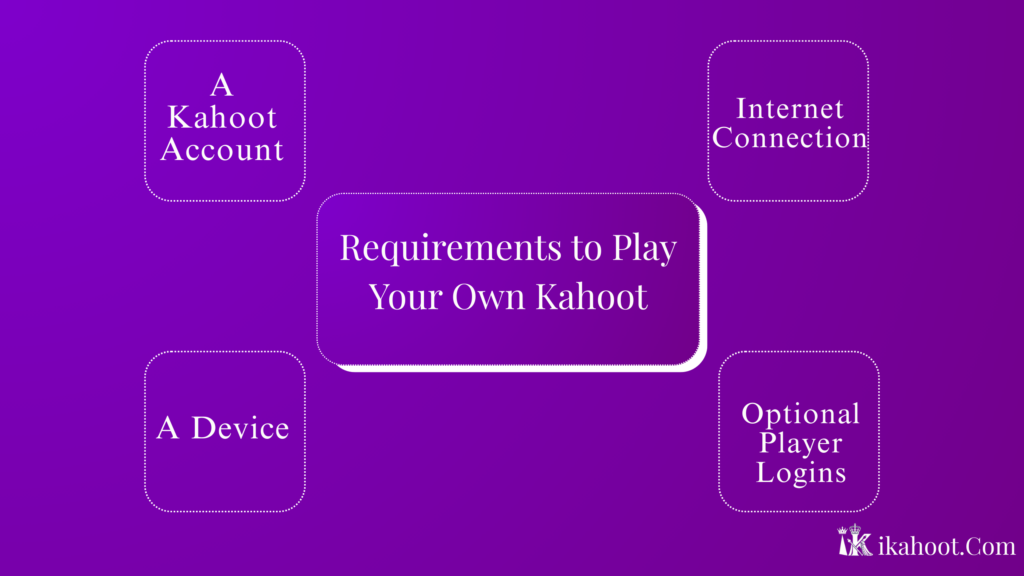
Before you start, ensure you have:
- A Kahoot Account: You must be logged into your free or paid Kahoot account.
- A Device: You can host from a computer (recommended) or the Kahoot app on a smartphone or tablet.
- Internet Connection: Both you (the host) and all players need a stable internet connection.
- Optional Player Logins: For live games, players usually just need the Game PIN. For assignments or if the host enables certain features, player accounts may be needed. This depends on the host’s settings.
How to Play Your Own Kahoot (Step-by-Step)
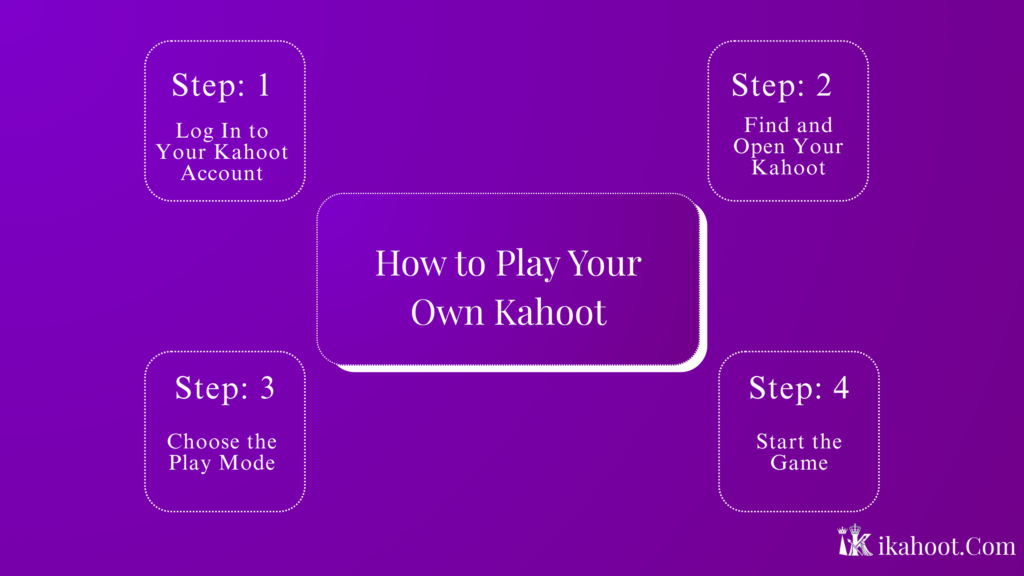
Follow these exact steps to host your quiz.
Step 1: Log In to Your Kahoot Account
Go to the Kahoot website or open the Kahoot app. Log in with the account you used to create your quiz.
Step 2: Find and Open Your Kahoot
Navigate to your library. Click on the Kahoot you want to host. This will open its details page.
Step 3: Choose the Play Mode
Click the “Play” button on your Kahoot. You will see two main options:
H3: Option A: Live Game (Teach Mode)
- Classic: Players answer on their devices, and the leaderboard is shown after each question. Best for in-person or video call sessions.
- Team Mode: Players form teams and use one device to answer together.
H3: Option B: Assignment (Self-Paced Mode)
- Challenge: You set a deadline (e.g., 3 days). Players complete the Kahoot independently at their own pace.
Step 4: Start the Game
- For a Live Game: After selecting “Classic” or “Team Mode,” a screen with a large Game PIN will appear. Share this PIN with your players. Players go to kahoot.it on their devices, enter the PIN, and add their nickname. Once they join, click “Start” on your screen.
- For an Assignment: After selecting “Challenge,” set a deadline and optional settings. Click “Create.” You can then share a direct link or a PIN with your players.
Related Blogs:
- How to Play Kahoot: Step-by-Step Guide for Students and Teachers
- What Is Kahoot? Complete Beginner Guide for Students & Teachers
- How to Join Kahoot as a Player (Step-by-Step Guide)
- Solar System Trivia Kahoot Challenge: Play, Learn, and Test Your Space Knowledge
Live Kahoot vs. Assignment Kahoot
| Feature | Live Game | Assignment (Challenge) |
|---|---|---|
| Time Limit | Per question timer (host sets). | Overall deadline (host sets, e.g., 3 days). |
| Game PIN Expiry | The PIN is active only for that game session. | The PIN/link is active until the deadline passes. |
| Best For | Classroom, training, parties, real-time events. | Homework, remote learning, asynchronous training. |
| Host Control | Host controls the pace, reveals answers. | Classroom, training, parties, and real-time events. |
How You Participate as the Host
As per Kahoot’s official functionality, the host’s role is to manage the game:
- Controlling Questions: You click “Next” to proceed through questions and reveal answers.
- Viewing Answers: You see how many players chose each option on your screen.
- Ending the Game: You control when to finish and can view the final podium. You can also download a report of the results.
Important: On your primary host device (showing the questions), you do not join as a player to answer. You can, however, join the game from a separate device using the Game PIN if you want to play along.
Important Rules & Limitations
- PIN Expiry: A live game PIN expires once the host ends the game or closes the session.
- Internet Requirement: A live game cannot continue without an active host’s internet connection.
- Device Limitations: The number of players who can join may depend on your account type. This depends on the host’s settings.
- Host Control: In a live game, only the host device can control the question flow. Closing that browser tab will end the game for everyone.
Common Mistakes & How to Avoid Them
- Starting the Wrong Mode: Double-check you’ve selected “Live” (for now) or “Assignment” (for later) before sharing the PIN.
- Closing the Host Tab: Keep the tab or app where you launched the game open and active until the game is finished.
- Confusing PIN Reuse: You cannot reuse a Game PIN from an old session. Each new game generates a unique PIN.
- Player Login Confusion: For most live games, players do not need an account. If they are prompted to log in, it may be because the host enabled a specific setting.
Frequently Asked Questions(FAQs)
Can I play my own Kahoot alone?
Yes. You can launch your Kahoot in “Practice” mode directly from your library to preview it. To simulate a real game, you would need to join from a second device using the Game PIN.
Does the game PIN expire?
Yes. For live games, the PIN is valid only for that active session. For assignments, the PIN or link is valid until the completion deadline you set.
Can I replay the same Kahoot?
Yes, you can host the same Kahoot as many times as you want. Each session will have a new Game PIN.
Do players need accounts to join my game?
Typically, no. For standard live games, players only need the Game PIN at kahoot.it. For assignments or if certain features are enabled, accounts may be required. This depends on the host’s settings.
Can I host a Kahoot from my phone?
Yes, you can host a game using the Kahoot app on your smartphone or tablet.
What happens if my internet disconnects during a live game?
The game will be interrupted for all players. Reconnecting may restore the session, or you may need to restart.
Can I change questions after starting a live game?
No, you cannot edit Kahoot’s questions once a live game session has begun.
Playing your own Kahoot is a straightforward process of logging in, selecting your quiz, and choosing how to host it—either live for real-time fun or as an assignment for flexible learning. Remember, your role as the host is to manage the game, not play from the same screen. By following these steps, you can confidently launch your Kahoot and engage your players.